Sessions
Some hints related to sessions and the session results page.
Calendar — managing sessions
You can easily add and remove different sessions for an event on the Calendar page:
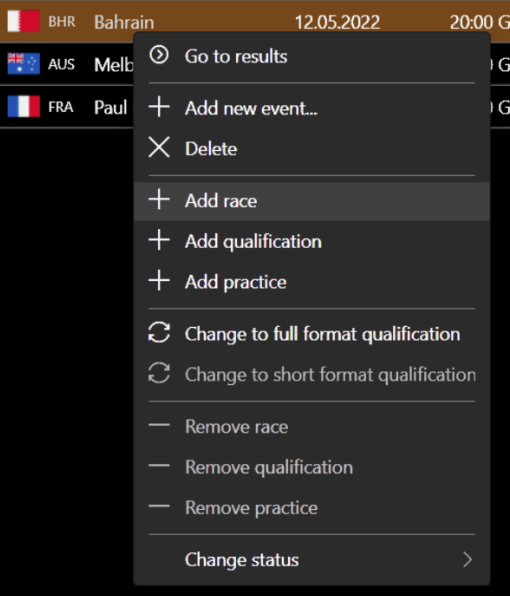
Here you can also change the status of any event to non-championship:
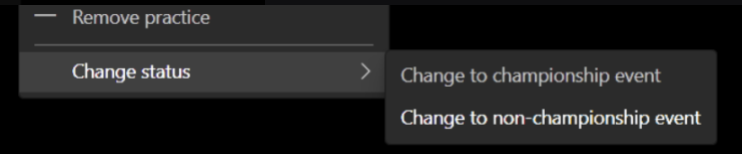
Non-championship status means that all sessions within that event are not processed for standings and statistics.
Results page
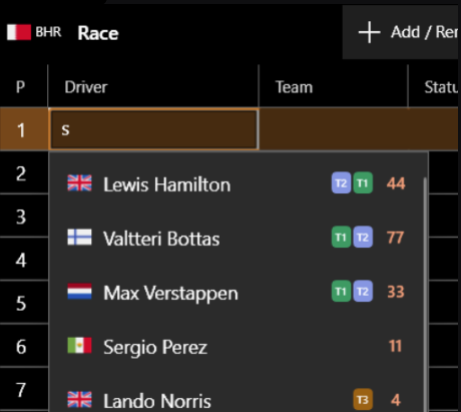
When typing any letter in the driver field, the app searches for matches in driver names, real names, and in-game names:
It's very easy to enter a time/gap value:
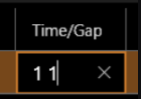
...which converts to:
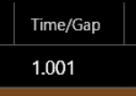
Just try it.
Classification position
It is not necessary to enter all information — just drivers, teams, and statuses. The key field in session results is the classification position:
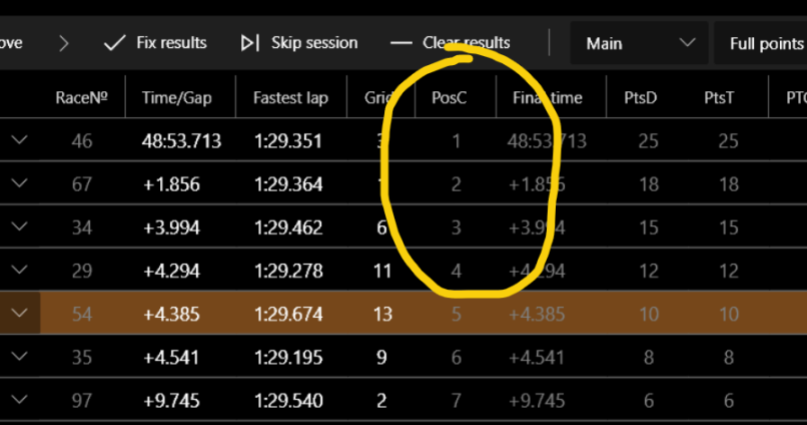
It is calculated automatically. Its value depends directly on the times and gaps. The following are also taken into account:
- DNF, DSQ status
- PTS (penalty time from stewards)
- PPS (penalty positions from stewards)
PTG (penalty time from the game) and PPG (penalty positions from the game) are not taken into account — it is assumed that they are already accounted for by the game.
PP (penalty points) is only needed for the season's statistics.
If you want to remove penalty time issued by the game, just enter a negative value in the PTS field:
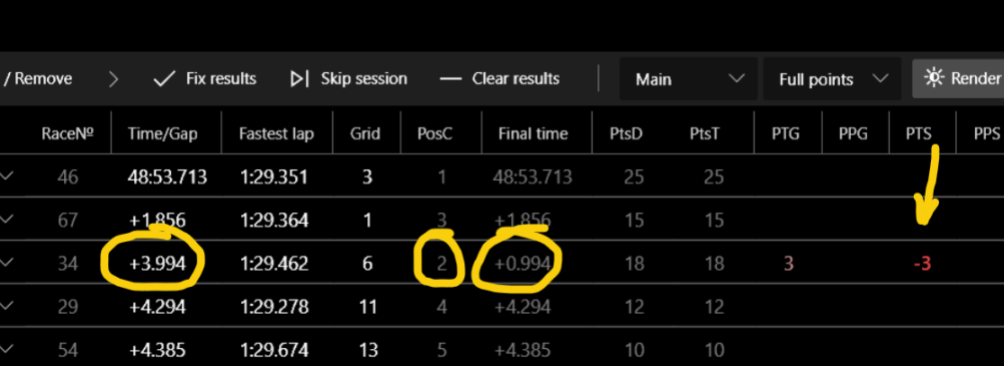
The app uses a pretty advanced classification position processor, so try to manage results using PTS and PPS.
Sessions management
Try to fill results into events consistently:
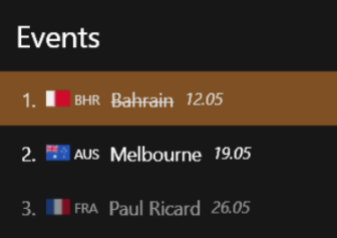
Completing qualifying and practice results is not as important as completing race results. You can skip sessions if necessary:
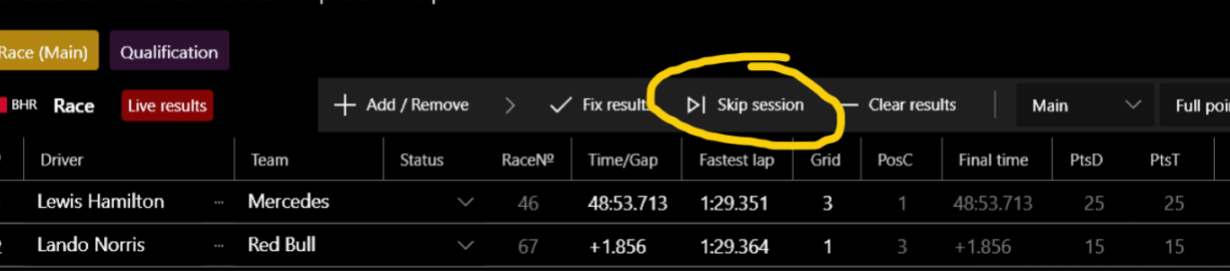
Fix results button
You don't always have to click the "Fix results" button:
It is only needed to update the UI and standings within the app. When you press Render, fix results happen automatically.
Session type
The type of session is important for the calculation of points and statistics:
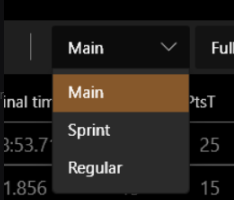
You can change it at any time.
Qualification format
You can also change to full format or short format at any time for a qualification session:
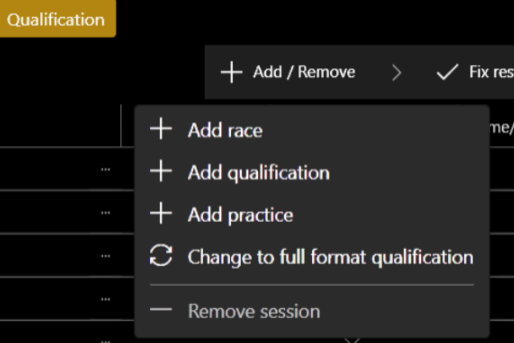
For the full qualification format, a separate virtual session is created with the combined results of all segments:
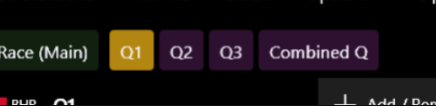
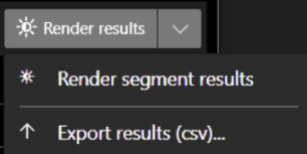
However, it is not necessary to select the "Combined Q" tab to render combined results. You can simply click the Render results button while on any qualification tab. If you want to render a specific segment, find the appropriate button in the render drop-down menu:
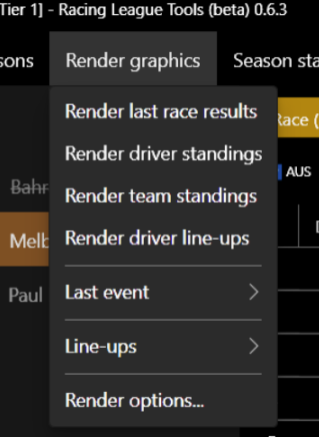
For faster rendering, use the main menu:
Adding new drivers in results
If you need to enter a new driver in the session results, you can immediately create a new driver:
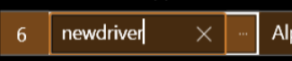
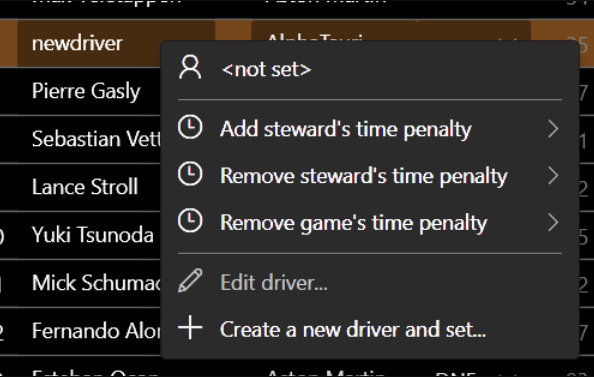
Enter the driver's name and press Enter. The driver will be created and selected. To easily add or remove a driver's penalty, use the context menu:
Tyre stints
To edit tyre stints, open app_config.json and add the following line, then restart the app:
"IsEnableTyreStintsManualEdit": true